Convert Excel Spreadsheets Into Professional PDF Files
Save Excel worksheets as high-quality PDF documents for sharing, printing, or presentations.
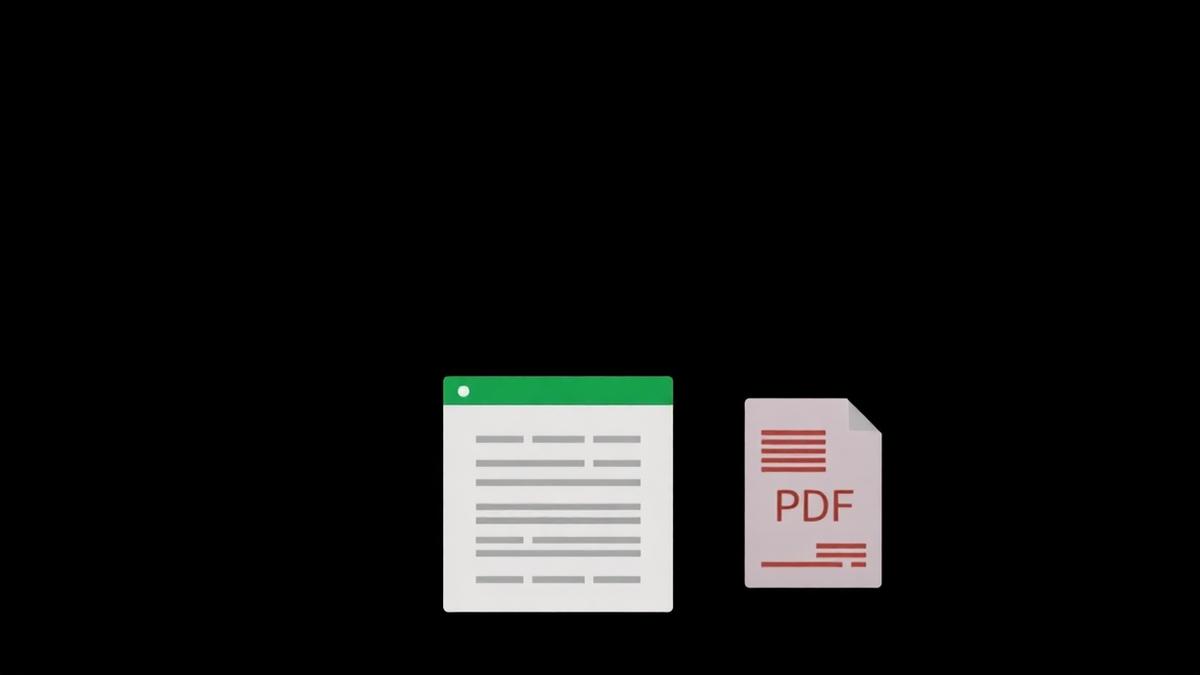
Excel is a working document. PDF is a finished document. The moment your spreadsheet is ready to share, it should become a PDF — no exceptions. Here is how to do it right the first time, without the classic mistake of pages that break in weird places.
The single biggest mistake
People hit Save As PDF and then complain that their beautiful 30-column dashboard came out as 40 pages. That is because Excel does not know how to fit your columns on a page unless you tell it. Fix this first.
The 4 settings that matter
- Page orientation — landscape for wide tables, portrait for lists.
- Scaling — Fit All Columns on One Page is the magic option.
- Print area — never rely on Excel guessing. Set it manually.
- Margins — narrow margins give you more room without shrinking text.
Multi-sheet workbooks
By default, only the active sheet gets converted. If you need every tab in one PDF, choose Entire Workbook before exporting. Each sheet becomes a new section in the resulting file.
Charts and images
Charts export at screen resolution by default. For a crisp result, right-click each chart, choose Format Chart, and set the resolution to 300 DPI before converting. The difference between a fuzzy chart and a razor-sharp one is that one setting.
What to do after conversion
Preview page by page. Look for cut-off columns, weird page breaks, and rows that got orphaned. If you spot problems, go back to Excel, adjust the print area, and re-export. Do not try to fix it in the PDF — you'll spend hours.
Frequently Asked Questions
Can I password-protect the PDF at the same time?
Convert first, then use our Protect PDF tool. It takes 5 extra seconds.
Do formulas carry over as formulas?
No. PDF freezes the calculated values. The recipient sees numbers, not formulas.
Will pivot tables convert correctly?
Yes, they export as their current state — but the recipient can no longer interact with them.
Ready to try it yourself?
Open Converter →