How to Combine Multiple PDF Files Without Losing Quality
Learn the easiest way to combine multiple PDF documents into a single file while preserving formatting, layout, and quality.
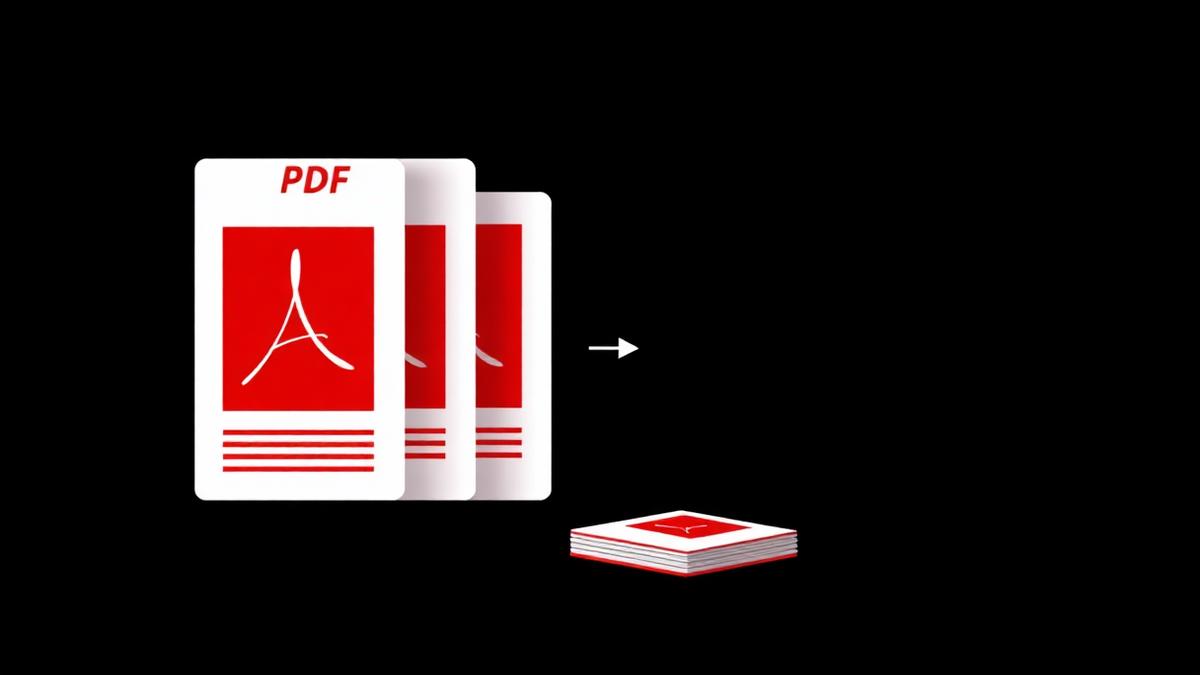
If you have ever tried to send a contract, a scanned report, or a school assignment as a single file, you already know the problem: nobody wants to open seven attachments. Combining multiple PDFs into one clean document is one of those tiny office skills that saves hours over the course of a year — but only if you do it without wrecking the original quality.
In this guide I will walk you through exactly how I merge PDFs day to day, what to watch out for, and how our free browser tool keeps every page pixel-perfect.
Why quality drops when you merge PDFs
Most online mergers rebuild your PDF from scratch. During that rebuild they re-encode images (usually as low-quality JPEG), flatten transparency, and sometimes even convert vector text into raster. The output looks fuzzy, the file feels heavier than it should, and copy-paste stops working because the text has become a picture.
A proper merge does the opposite. It reads the page objects from each source PDF and inserts them into a new container without touching the fonts, the images, or the vector art. The result is byte-for-byte the same visual quality — just stitched together.
The 3-step process I use every day
- Open the merge tool. No sign-up, no download. Just a page in your browser.
- Drop the files in the order you want them. Then drag to re-order or delete pages you don't need.
- Click Merge. The tool processes everything on your device and hands you back one clean PDF.
The whole thing takes about 20 seconds for a 5-file merge. Because processing happens in your browser, your files never leave your computer — that matters when the documents are contracts, medical scans, or bank statements.
Common mistakes to avoid
1. Printing to PDF instead of merging
It works, but Windows and macOS print drivers rasterize the page at 300 DPI. You lose selectable text and the file gets huge. Always use a real merge tool.
2. Using desktop apps that add watermarks
Free trials of Adobe Acrobat, Nitro and Foxit stamp a big banner across every page. If you plan to send the file to a client, that is embarrassing.
3. Ignoring page order
Once merged, fixing the order means splitting the file and merging again. Get the order right the first time by using the drag handles before you click Merge.
When merging is not the right answer
If your goal is to send one file that is under 5 MB, sometimes you should compress each PDF before merging. If the pages are scans of the same contract signed by different people, an overlay tool is often better. And if you only need pages 3, 7, and 12 from three different PDFs, split them first and then merge — you'll get a cleaner final document.
Try it right now
You do not need to install anything. Open our merge tool, drop your files, and download the combined PDF in seconds. The quality will match your originals exactly, and nothing is uploaded to a server.
Frequently Asked Questions
Will merging PDFs reduce the file size?
Not by itself. Merging preserves the original pages, so the output size is roughly the sum of the inputs. If you need it smaller, run the merged file through a compressor afterward.
Can I merge password-protected PDFs?
Not directly. Unlock each file first with our Unlock PDF tool, then merge them.
Is there a limit on how many PDFs I can combine?
In practice the limit is your browser's memory. Most laptops handle 50–100 files without complaining.
Ready to try it yourself?
Merge PDF Now →