The Easiest Way to Separate PDF Pages Online
Discover how to split large PDF files into smaller documents quickly and securely using an online PDF splitter.
I once had to send someone a single chapter from a 400-page company handbook. The whole file was 80 MB. Gmail rejected it, WhatsApp refused it, and my colleague was still waiting. That is the moment I started taking PDF splitting seriously.
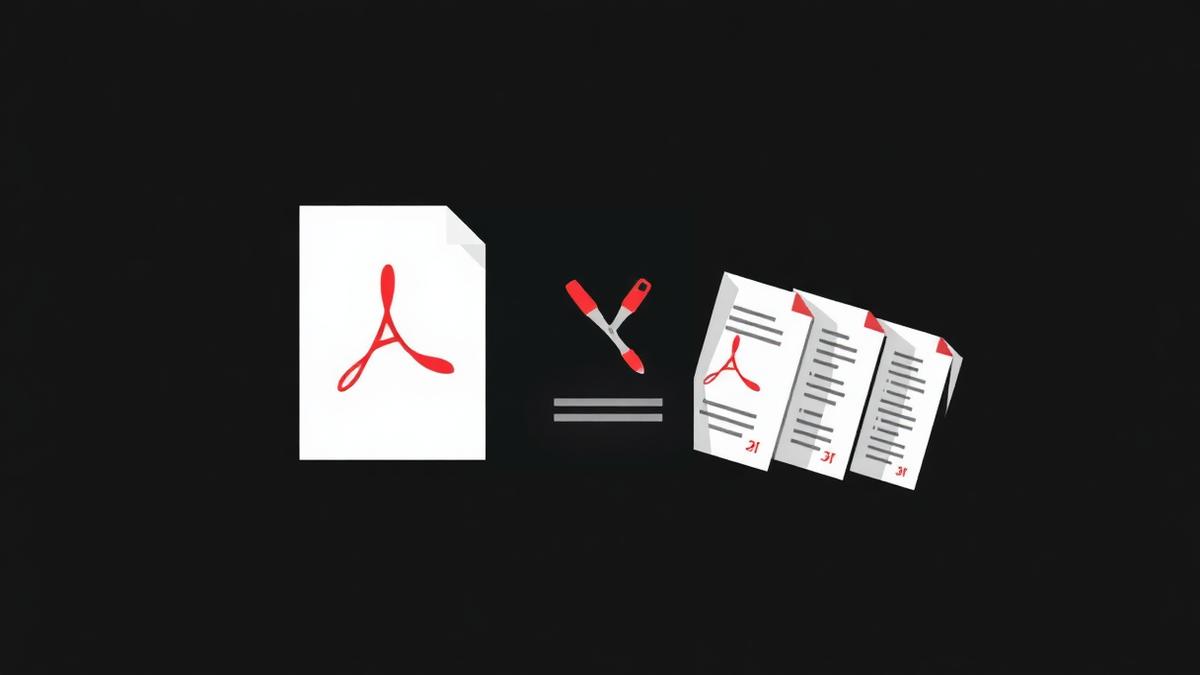
What splitting a PDF actually means
There are three flavours of split, and picking the right one saves a lot of clicking:
- Extract a range — get pages 5 to 12 as a new PDF.
- Split into single pages — turn a 30-page report into 30 files.
- Split every N pages — chunk a book into 10-page sections.
Our splitter supports all three. You do not need Adobe Acrobat, and you do not need to install a Python script. Everything runs in the browser.
Step by step
1. Open the split PDF tool. 2. Drop your file in. 3. Choose the split mode — range, single pages, or fixed increment. 4. Click Split. You'll get a ZIP with all the pieces, or a single PDF if you picked a range.
Why do it in the browser
The biggest concern with online PDF tools is where your file goes. A privacy policy that says 'we delete files after an hour' still means your file spent time on someone else's server. Our splitter never uploads. The PDF stays on your machine — you can literally disconnect from Wi-Fi mid-split and it still works.
Practical use cases
- Send just the invoice page from a monthly statement.
- Pull one chapter out of an eBook for study notes.
- Break a 500-page trial transcript into daily sessions.
- Prepare a single-page attachment when a form only allows one PDF upload.
Splitting vs. deleting pages
If you just want to remove a couple of pages, that is a delete operation, not a split. Splitting keeps every page but rearranges them into new files. Deleting throws pages away. Choose based on what you actually need to hand off.
Frequently Asked Questions
Will splitting a PDF lose quality?
No. Our tool copies the original page objects unchanged, so every image, font, and vector stays identical.
Can I split a scanned PDF the same way?
Yes — scanned PDFs are just PDFs with image pages. The split works the same way.
What if my PDF has 1000 pages?
Browsers handle it fine. If memory gets tight, use the fixed-increment mode to process in chunks.
Ready to try it yourself?
Split PDF Free →