Create Professional PDF Files From Word Documents
Convert Microsoft Word documents into secure and shareable PDF files with perfect formatting.
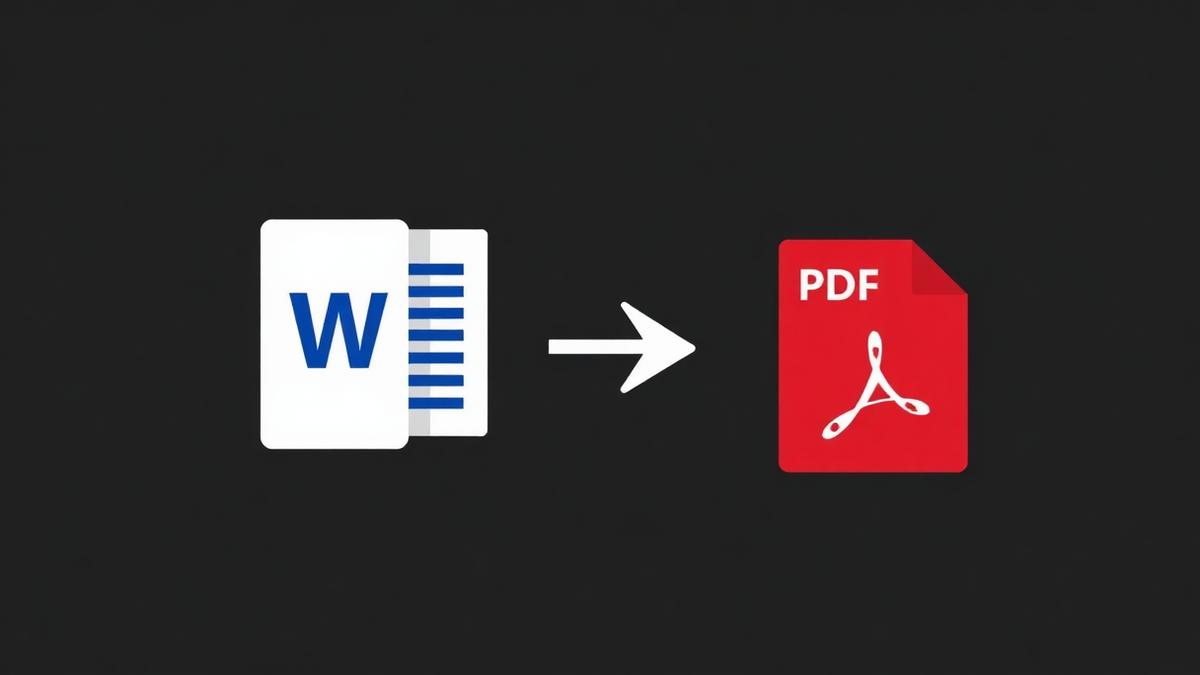
Word documents are wonderful for writing and terrible for sharing. Open the same .docx on two different computers and you'll see different fonts, different line breaks, sometimes a page that ends in the wrong place. Converting to PDF locks the layout so what you designed is what everyone sees.
Why PDF is the standard for sharing
- The recipient sees the exact layout you saved.
- Fonts are embedded — no more Arial swapping to Times New Roman.
- You can password-protect and restrict printing.
- It opens on any device without Microsoft Office.
How to convert cleanly
Drop your .docx into the tool. Pick your page size and margins if you want to override the Word settings. Click Convert. Done. The resulting PDF matches your Word file including headings, tables, bullet points and images.
Formatting tips before you convert
Set page size in Word first
If you want an A4 PDF, set the Word page to A4 before converting. Fighting the tool later is harder than fixing it upfront.
Embed non-standard fonts
If your document uses a custom font, embed it in the Word file (File → Options → Save → Embed fonts). Otherwise the converter will substitute a similar font, and 'similar' is rarely close enough.
Compress images inside Word
A single 12 MB photo dropped into a Word document will produce a huge PDF. Right-click the image, choose Compress, and pick 150 DPI before converting.
When to add password protection
If your PDF contains anything sensitive — salary information, contracts, IDs — convert first, then protect with our Protect PDF tool. Two-step process, five seconds each.
Frequently Asked Questions
Will hyperlinks still work in the PDF?
Yes, both internal links and external URLs are preserved.
Can I convert .doc files as well as .docx?
Yes, but .doc is older and sometimes produces less clean output.
Does the tool support headers and footers?
Absolutely — page numbers, headers, footers and section breaks all carry over.
Ready to try it yourself?
Convert Word to PDF →