Export PDF Files as Clear Image Formats Online
Convert PDF documents into image files quickly while maintaining excellent image quality.
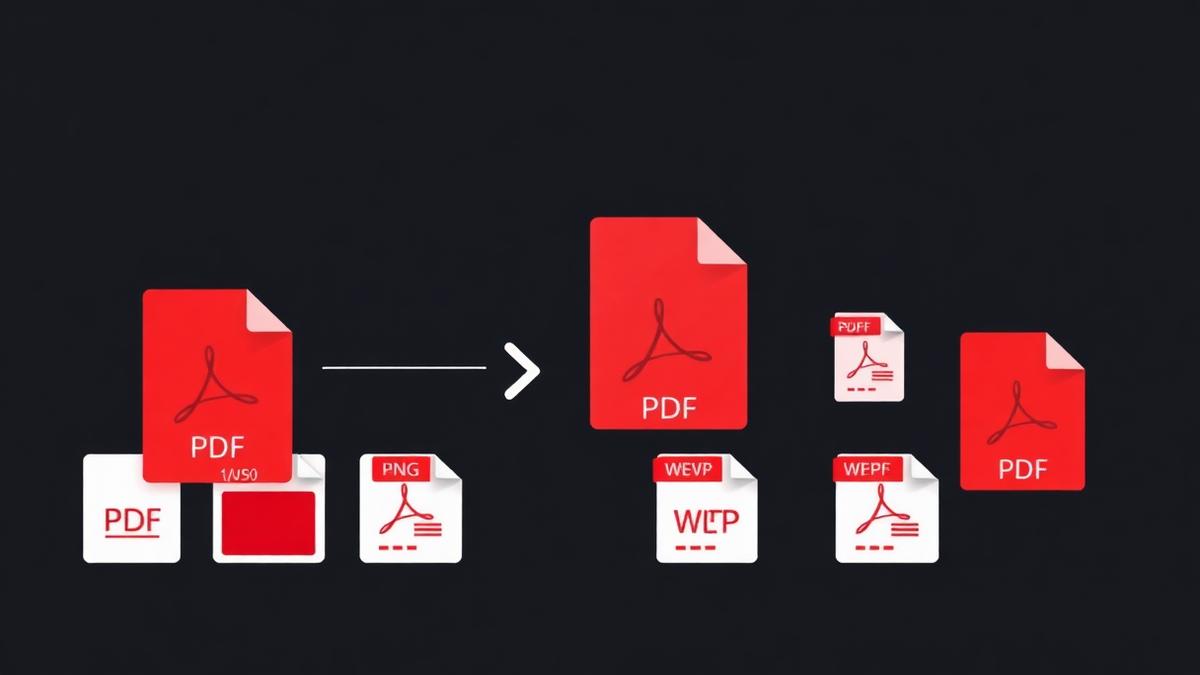
Converting a PDF to images is not one decision — it is several. Which pages? Which format? Which resolution? Get these three right and the output is exactly what you needed. Get them wrong and you'll be re-doing the export.
Picking a format
JPG
Best all-rounder. Small files, universal support, works everywhere. The only downside is no transparency and slight quality loss on text.
PNG
Sharpest text and transparent backgrounds. Files are 3–5× larger than JPG. Use when the page has thin lines, small text, or you plan to place it over a coloured background.
WebP
Modern format with 30% smaller files than JPG at the same quality. Perfect for web use. Support in older Windows apps is still spotty.
Batch conversion workflow
For a multi-page document, our tool creates a ZIP with all images named sequentially. This makes it easy to loop through them in a script or drag them into a folder-based tool like a photo editor or a website CMS.
Naming conventions matter
When exporting a 100-page PDF, you don't want files named image1.jpg through image100.jpg — because your OS will sort them 1, 10, 11, 100, 2, 20… Use zero-padding: 001.jpg, 002.jpg, and they sort correctly everywhere.
Practical example
A publisher I know converts every finished PDF book to 150-DPI JPG images and stores them alongside the source. It is a 30-second job that saves hours later when someone needs a page for a marketing post.
Frequently Asked Questions
Can I mix formats in one export?
Not in a single pass. Export twice with different settings.
Which format has the best print quality?
PNG at 300 DPI. JPG at 90% quality is nearly identical and much smaller.
Does converting reduce the PDF quality?
The PDF is untouched. Only the exported image reflects the DPI setting.
Ready to try it yourself?
Convert PDF to Image →