Extract Tables and Data From PDF Files Easily
Convert PDF documents into editable Excel spreadsheets for faster data analysis and editing.
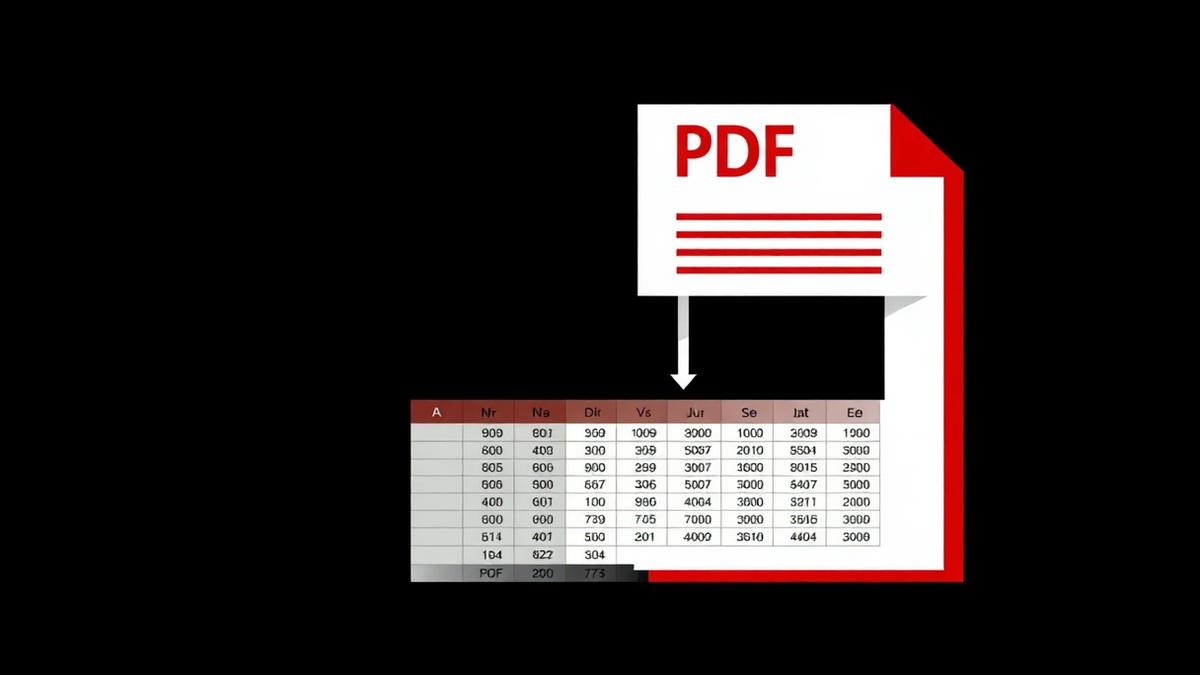
The most annoying moment in any office is when a client sends financial data as a PDF and asks for a summary in Excel. Copy-paste breaks the columns. Retyping takes an hour. There is a better way.
The three types of PDF tables
1. Digitally-generated tables
If the PDF came from Excel, Word or a reporting tool, the table cells are already structured. A conversion tool can read them and rebuild the grid perfectly.
2. Layout-drawn tables
Some PDFs draw lines and place text on top without any table structure underneath. Converters have to guess where the columns are. Results are usually 90% correct — just needs a quick review.
3. Scanned tables
Photos of receipts or paper invoices. You need OCR to read the numbers, and then a table detector to align them. Even the best tools miss cells here — expect manual cleanup.
How to get the best extraction
- Start with the highest-quality PDF you can get. A screenshot of an email attachment always loses fidelity.
- If the PDF has multiple tables per page, extract page by page.
- Verify totals after extraction. If a column sum matches the PDF, the extraction is safe to use.
- For recurring reports, build a template once and reuse it.
A workflow that actually works
1. Convert the PDF to Word or a structured format using our converter. 2. Open the result and copy the tables into Excel. 3. Use Excel's Text to Columns feature to fix any merged cells. 4. Add a checksum row that compares totals against the PDF.
When to skip the tool entirely
If it's a one-page invoice with five line items, retyping is faster than converting. If it's a 40-page trial balance, converting saves an afternoon. Know when to use which.
Frequently Asked Questions
Which is better — CSV or XLSX for extracted data?
CSV is smaller and universal. XLSX keeps formatting and formulas. Pick based on where the data is going next.
Can I extract tables from scanned receipts?
Yes with OCR, but expect to fix 10–20% of the values manually.
Will the numbers be formatted as text or as numbers?
Depends on the tool. Always run a =ISNUMBER() check before formulas.
Ready to try it yourself?
Open PDF Converter →